Is Driver Booster 13 Safe? Honest Review, Risks and Alternatives (2026)
Last updated: October 3, 2026 | Reading time: about 8 minutes | Independent guide, not affiliated with IObit
Driver updaters have a mixed reputation, so it is fair to ask: is Driver Booster 13 safe to install? This guide explains what the program does, where the real risks are, how to use it without breaking anything, who should skip it, and which alternatives are worth considering.
Verdict: The genuine Driver Booster from IObit is a legitimate, widely used driver updater and is generally safe when you download it from the official site and use it with care. The real dangers come from cracked copies, careless installs, and updating sensitive drivers without a backup.
What Driver Booster 13 Does
Drivers are the software that lets Windows communicate with your graphics card, network adapter, sound card and other hardware. Outdated or faulty drivers can cause slow performance, crashes and devices that stop working. Based on the product descriptions from IObit and software stores, Driver Booster 13 offers:
- A scan that lists outdated, missing or faulty drivers
- One-click updating of several drivers at once
- Driver backup and restore if an update causes trouble
- An ignore list for drivers you do not want changed
- Automatic restore point creation and scheduled scans in the settings
- Prioritized updates for gaming-related drivers and components
Is It Safe? Risk by Risk
| Area | Assessment | What you can do |
|---|---|---|
| The developer | IObit is an established software company, and product descriptions say drivers are tested against Microsoft WHQL standards and the company’s own checks | Download only from the official IObit website |
| The installer | Free software installers often offer optional extras | Choose the custom install option and read every screen |
| Driver quality | Automatic matching can occasionally pick a driver that is not ideal for your exact model | Create a restore point first and prefer your device maker’s driver for critical hardware |
| Cracked or “free key” versions | High risk of malware and unwanted software | Avoid them completely and see the legitimate options below |
| Privacy | The program has to read your hardware list to find matching drivers | Read the privacy policy on IObit’s website before installing |
How to Use Driver Booster Safely in 7 Steps
- Download the installer from the official IObit website only
- Pick the custom install option and decline any extras you do not want
- Create a restore point: search for Create a restore point in the Start menu and click Create
- Run the scan and review the list instead of updating everything at once
- Update one or two drivers at a time, starting with low-risk ones such as audio or printers
- Restart, then test internet, sound, display and sleep or wake
- If something breaks, open Device Manager, right-click the device, choose Properties → Driver → Roll Back Driver, or restore from your backup or restore point
Tip: Keep your laptop maker’s original network driver saved on a USB drive. If a Wi-Fi driver update fails, you can reinstall the old one without internet.
Which Drivers Should You Update With It?
| Driver type | Update with Driver Booster? | Better source when in doubt |
|---|---|---|
| Audio | Usually fine | Laptop or motherboard maker |
| Wi-Fi and Ethernet | Usually fine, but keep a copy of the old driver | Laptop or motherboard maker |
| Graphics | Possible | NVIDIA, AMD or Intel directly |
| Chipset and storage | Be careful | Intel, AMD or your device maker |
| Printers and peripherals | Usually fine | The device maker |
| BIOS or UEFI firmware | Do not use a driver updater | Your device maker’s support page only |
Pros and Cons
| Pros | Cons |
|---|---|
| Quick scan with a clear list of outdated drivers | Free edition has limits compared with Pro |
| One-click updates save time | Automatic matching is not perfect for every model |
| Backup and restore options | Installer may include optional extras |
| Ignore list for drivers you want to keep | Updating everything at once can cause problems |
| Helpful for older PCs with many outdated drivers | Unnecessary on well-maintained PCs that use Windows Update |
Who Should Use It and Who Should Skip It
A good fit: owners of older PCs with many outdated drivers, people who want one place to scan and back up drivers, and users who are comfortable rolling back a driver.
Better to skip: laptop owners whose maker provides a reliable update tool, gamers who already update graphics through their GPU app, and anyone who prefers to change as little as possible on a stable system.
5 Alternatives Worth Considering
| Option | Cost | Good for | Watch out for |
|---|---|---|---|
| Windows Update (Optional updates) | Free | A safe, simple baseline | Not always the newest version |
| Device maker tools from Dell, HP, Lenovo and others | Free | Exact drivers for your model | Only covers that brand |
| GPU apps such as the NVIDIA App, AMD Software or Intel Driver & Support Assistant | Free | Graphics and related drivers | Only covers their own hardware |
| Snappy Driver Installer Origin | Free, open source | Offline driver packs | More technical interface |
| Driver Easy and similar paid updaters | Paid tiers | An automatic alternative | The same cautions apply as with any updater |
Real-World Examples (Illustrative Scenarios)
Example 1: Wi-Fi keeps dropping after a Windows update
A laptop loses Wi-Fi every few hours. A scan shows an old wireless driver. The user creates a restore point, updates only that driver, restarts and tests for a day. The problem stops, and nothing else was changed.
Example 2: An older desktop with many outdated drivers
A five-year-old desktop shows a long list of outdated items. Instead of clicking update on everything, the user installs audio and network drivers first, checks stability, then handles the rest over a weekend.
Example 3: A black screen after a bulk update
A user updates every driver in one go and gets a black screen on restart. Booting into Safe Mode and using Roll Back Driver on the graphics adapter fixes it. Lesson learned: update in small batches.
Pricing and Licensing in Brief
Pro licenses are sold for a set term and number of PCs. One store listing we reviewed showed a 3-PC, 1-year license at $15.95, but prices change, so confirm the current price on the checkout page. For ways to save money without risking your PC, read Driver Booster 13 Pro Free License: Legit Ways to Get Pro. If a key will not activate, use Driver Booster License Key Not Working? 9 Fixes.
Frequently Asked Questions
Is Driver Booster 13 a virus?
The official version from IObit is not a virus. Fake or cracked versions from unofficial sites are a different matter and often carry malware, so download only from the official website.
Can Driver Booster damage my PC?
Any driver change carries some risk, especially if you update many drivers at once or choose the wrong driver. A restore point and a backup make it easy to undo.
Is the Free edition enough?
For occasional checks, yes. Pro adds features such as faster downloads, backup and wider hardware support, so decide based on how often you update drivers.
Does it slow down my computer?
A scan and update uses system resources while it runs. Reviews describe low CPU and memory use in normal operation, but results vary by PC.
Is a cracked or free-key version safe?
No. Cracks, key generators and unverified key lists are a common way to spread malware. They also break the license terms.
Does Windows update drivers by itself?
Yes, Windows Update installs many drivers automatically, but not always the newest ones. Optional updates in Windows Update can show more.
How do I activate Driver Booster 13?
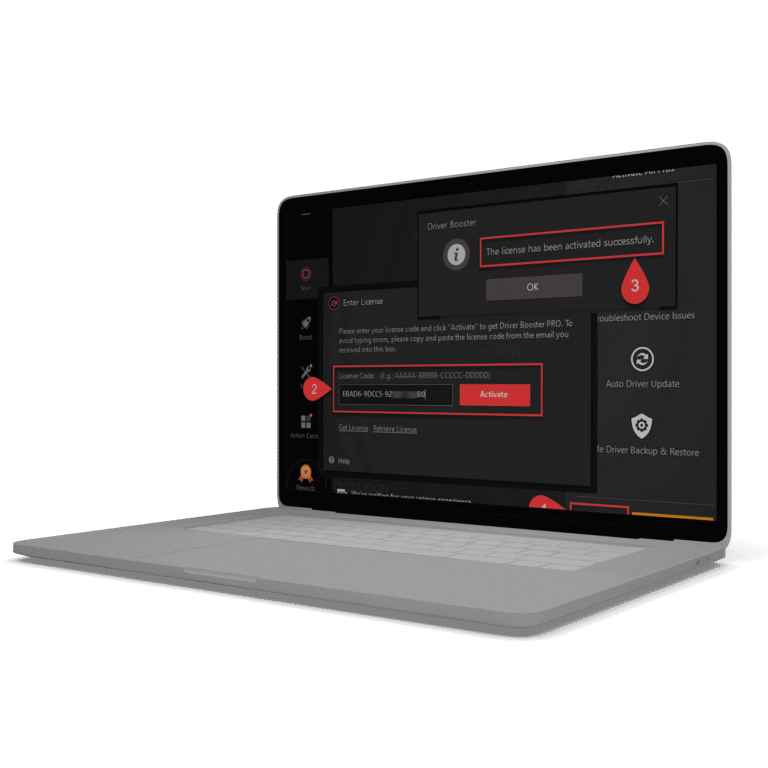
Follow How to Activate Driver Booster 13.
Final Thoughts
Driver Booster 13 is a reasonable tool when you treat it with care: download from the official site, decline extras, back up first and update in small batches. If you would rather change less on your system, Windows Update and your device maker’s tools cover most needs for free.
Browse all our guides on the Driver Booster 13 Key homepage.